Gimptastic Scraps Available Exclusively @

Gimptastic Scraps CT



Blog Trains
CU Licenses




Sunday, January 15, 2012

This tutorial is of my own creation and any resemblance to any other tuts is purely coincidental. This tutorial is for personal use only, using it for monetary gain is against our TOU's.
Supplies Needed:
~Gimp (any version will do).
~Dote on You FTU scrapkit by Kittz Kreationz HERE.
~Tube of choice. I used the artwork of Lix, this tube will be available for purchase 1-15-12. You must have a license to use this art. You can purchase this art from PTE HERE.
~Template of choice. I used BP template 148 which you can get from Becky P's Creations HERE.
~Mask of choice. I use WSL mask 363 which you can get HERE.
~Font of choice. I used Lucida Handwriting Italic.
Let's get started!!!
1. Open a new layer ( I prefer a large canvas, so I make mine 1050x656). Make your canvas transparent (Layer > Transparency > Color to Alpha).
2. Open template in PSD format, remove and move layers of template around until they are the way you like them.
~Add paper from scrapkit to individual layers of the template (Right click on template layer in layer box > Alpha to Selection > CTRL I > Select paper layer in layer box > Delete).
These are the papers I used:
Paper 9
Paper 10
Paper 11
Paper 12
~I added noise to some of the template layers to make them look glittery (Filters > Noise > RGB Noise).
~I colorized some of the template layers to better match the scrapkit (Colors > Colorize > play with the setting until you get the desired color).
~Add drop shadow to template layers (Filters > Light & Shadow > Drop Shadow).
3. Open tube, add drop shadow.
4. Open and place the following elements:
Hearts swirl
Love letter
Love bug
H1
Cupcake
Boxed rose
Puppy love
Winged love heart
Tiny winged heart
Heart stringy
Butterfly
~Some of the elements may need to be sized down. Using your scale tool in your tool box adjust the pixel size until element is the correct size~
~Add drop shadow to all elements~
5. Open Paper 4.
6. Open mask.
7. Add mask to paper (click HERE for a tut on using masks).
8. Merge Layers (Image > Merge Visible Layers).
9. Crop Image (Image > Autocrop Image).
10. Scale image to desired size (Image > Scale Image).
11. Add copyright info and name.
12. Save as .png
ALL DONE!!!!!!!!!!
Saturday, January 14, 2012

Here's a tag I made using these HOT new tubes from Keith Garvey. They are available now in the New Releases section at PSP Tubes Emporium.
Friday, January 13, 2012

This tutorial is of my own creation and any resemblance to any other tuts is purely coincidental. This tutorial is for personal use only, using it for monetary gain is against our TOU's.
Supplies Needed:
~Gimp (any version will do).
~Tube of choice. I used the artwork of Suzanne Woolcott you must have a license to use this art which you can get HERE.
~Cherry Happy PTU scrapkit by KnC Scrapz which you can get from Lollipops N Gumdrops HERE.
~Mask of choice. I used WSL mask 363 which you can get HERE.
~Font of choice. I used ValentinaJF.
Let's get started!!!!!
1. Open a new layer ( I prefer a large canvas, so I make mine 1050x656). Make your canvas transparent (Layer > Transparency > Color to alpha).
2. Open Doodle frame, add drop shadow (Filters > Light & Shadow > Drop Shadow).
3. Open tube, add drop shadow.
4. Open and place the following elements:
button
button 1
button 2
element 4
element 5
element 7
element 8
pf1
beads
bow
bunny 1
pot
bowl
candy
cherry
knit flower
knit flower 1
knit flower 2
 ~Some elements may need to be sized down. Using the Scale Tool in your tool box adjust pixels to desired size~
~Add drop shadow to all elements~
5. Open Paper 1. Center it behind Doodle frame.
6. Open mask.
7. Add mask to paper (click HERE for a tut on using masks).
8. Merge layers (Image > Merge Visible Layer).
9. Crop image (Image > Autocrop Image).
10. Scale image to desired size (Image > Scale Image).
11. Add copyright info and name.
12. Save as .png
You are finished :)
~Some elements may need to be sized down. Using the Scale Tool in your tool box adjust pixels to desired size~
~Add drop shadow to all elements~
5. Open Paper 1. Center it behind Doodle frame.
6. Open mask.
7. Add mask to paper (click HERE for a tut on using masks).
8. Merge layers (Image > Merge Visible Layer).
9. Crop image (Image > Autocrop Image).
10. Scale image to desired size (Image > Scale Image).
11. Add copyright info and name.
12. Save as .png
You are finished :)
 ~Some elements may need to be sized down. Using the Scale Tool in your tool box adjust pixels to desired size~
~Add drop shadow to all elements~
5. Open Paper 1. Center it behind Doodle frame.
6. Open mask.
7. Add mask to paper (click HERE for a tut on using masks).
8. Merge layers (Image > Merge Visible Layer).
9. Crop image (Image > Autocrop Image).
10. Scale image to desired size (Image > Scale Image).
11. Add copyright info and name.
12. Save as .png
You are finished :)
~Some elements may need to be sized down. Using the Scale Tool in your tool box adjust pixels to desired size~
~Add drop shadow to all elements~
5. Open Paper 1. Center it behind Doodle frame.
6. Open mask.
7. Add mask to paper (click HERE for a tut on using masks).
8. Merge layers (Image > Merge Visible Layer).
9. Crop image (Image > Autocrop Image).
10. Scale image to desired size (Image > Scale Image).
11. Add copyright info and name.
12. Save as .png
You are finished :) 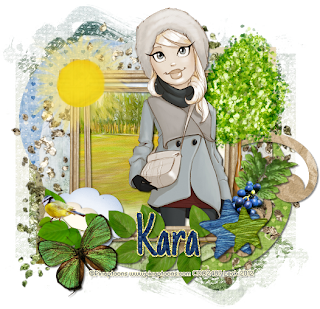
This tutorial is of my own creation and any resemblance to any other tuts is purely coincidental. This tutorial is for personal use only, using it for monetary gain is against our TOU's.
Supplies:
Gimp
PTU kit from Sweet Cravings Scraps called Have A Nice Day HERE
Tube of choice. I am using the art of Pinuptoons. You must have a license to use these tubes. You can purchase them at CDO HERE
Template 67 by me HERE
Mask 358 from weescotslass HERE
Font- Just Another Hand
Lets Begin!
-Open templates. Delete credits, stars 1 & 2 and rect 1 & 2. Image>Scale Image 450x383 pixels. Image>Canvas Size 600x600 pixels and make sure to click center.
-Let's add papers to the template layers. Make the template layer active (see below). Right click template layer in layer box and choose alpha to selection. Open paper (see below). Right click paper layer in layer box and choose add alpha channel. Layer>Scale Layer by 60%.Select>Invert. Press delete on your keyboard. Select>None. Delete the original template layer.Here are the template layers and which papers I used:
circle 1- paper 14 Filters>Light & Shadow>Drop Shadow 2, 2, 2, black, 50
circle 2- paper 11 Filters>Repeat Drop Shadow
circle 3- paper 10
square 2- paper 8
square 3- paper 1
square 1- paper 4
Open tube. Make the top layer. Scale 75%. Place on paper 4. Repeat drop shadow.
Elements:
star 1
star 2
grames- Rotate 30
frame 8
leaves
tree
cloud 1
cloud 2
butterfly
paper leaf 2
sun
glitter 1
bird
-Open paper 12. Apply mask. Click HERE to learn how to use masks.
-Add your name and copyright and you're finished!
Thursday, January 12, 2012

This tutorial is of my own creation and any resemblance to any other tuts is purely coincidental. This tutorial is for personal use only, using it for monetary gain is against our TOU's.
Supplies Needed:
~Gimp (any version will do).
~I Heart You FTU scrapkit by Kittz Kreationz HERE.
~Tube of choice. I used the artwork of Jose Cano, this tube will be available for purchase 1/13/12. You must have a license to use this art. You can purchase this art from PTE HERE.
~Template of choice. I used the Love 2 template by 2 Irish Bitches Designs which you can HERE.
~Font of choice. I used Petra Script EF.
Let's get started!!!
1. Open a new layer ( I prefer a large canvas, so I make mine 1050x656). Make your canvas transparent (Layer > Transparency > Color to Alpha).
2. Open template in PSD format, remove and move layers of template around until they are the way you like them.
~Add paper from scrapkit to individual layers of the template (Right click on template layer in layer box > Alpha to Selection > CTRL I > Select paper layer in layer box > Delete).
These are the papers I used:
Paper 3
Paper 5
~I added noise to some of the template layers to make them look glittery (Filters > Noise > RGB Noise).
~I colorized some of the template layers to better match the scrapkit (Colors > Colorize > play with the setting until you get the desired color).
~Add drop shadow to template layers (Filters > Light & Shadow > Drop Shadow).
3. Open tubes, I used both a full body and a close up.
~Open full body tube, you will need to duplicate this tube so that you have 2 (at the bottom of your layer box click on the blue box. This will give you 2 tube layers).
~Select the top tube layer in your tool box. Add Gaussion Blur (Filters > Blur > Gaussion Blur, use default settings)
~On that same tube layer change the mode to Overlay (at the top of your Layer Box you will see where it says Mode, click the arrow and select Overlay from the drop down menu).
~Add drop shadow to bottom tube layer.
~I changed the mode on the close-up to Grain Merge (at the top of your Layer Box you will see where it says Mode, click the arrow and select Grain Merge from the drop down menu). This tube has been added to the template in the same way you add paper (Right click on template layer in layer box > Alpha to Selection > CTRL I > Select tube layer in layer box > Delete).
4. Open and place the following elements:
9
22
26
30
31
38
42
43
55
57
58
64
65
70
~Some of the elements may need to be sized down. Using your scale tool in your tool box adjust the pixel size until element is the correct size~
~Add drop shadow to all elements~
5. Merge Layers (Image > Merge Visible Layers).
6. Crop Image (Image > Autocrop Image).
7. Scale image to desired size (Image > Scale Image).
8. Add copyright info and name.
9. Save as .png
ALL DONE!!!!!!!!!!

Check out this cutie by Myriadelle! This tube will be avalible at PTE 1-13-12 HERE

Download them HERE
Subscribe to:
Posts
(Atom)
Snag Our Blinkies


Don't Be A Pirate!