Gimptastic Scraps Available Exclusively @

Gimptastic Scraps CT



Blog Trains
CU Licenses



Sunday, December 4, 2011

This tutorial is of my own creation and any resemblance to any other tuts is purely coincidental. This tutorial is for personal use only, using it for monetary gain is against our TOU's.
Supplies Needed:
~Gimp (any version will do).
~Tube of choice. I used the artwork of Lix, you must have a license to use this art which you can get @ PTE HERE.
~Winter Forest PTU scrapkit by A Taggers Scrap which you can get HERE.
~Mask of choice. I used WSL mask 363 which you can get HERE.
~Font of choice. I used Monika Italic.
Let's get started!!!!!
1. Open a new layer ( I prefer a large canvas, so I make mine 1050x656). Make your canvas transparent (Layer > Transparency > Color to alpha).
2. Open Window, add drop shadow (Filters > Light & Shadow > Drop Shadow).
3. Open Paper 2 center it behind window, remove excess paper using a cutting tool or eraser.
4. Open tubes. I used both a full body tube and a close-up.
~Take the close up layer and move it (in your layer box) under window, but above the paper. Change the Mode on the tube to Dodge (at the top of your Layer Box you will see where it says Mode, click the arrow and select Dodge from the drop down menu). Remove excess tube layer using a cutting tool or eraser.
~Add drop shadow to the full body tube.
5. Open and place the following elements:
Leaves 3
Butterfly house
Butterfly 2
Butterfly 3
Chest
Violin
Kitty
Birds
Pinecones
Ribbon 3
Pebble 1
Pebble 2
Flower 1
Flower 2
Sequin flower
~Some elements may need to be sized down. Using the Scale Tool in your tool box adjust pixels to desired size~
~Add drop shadow to all elements~
6. Open Paper 14
7. Open mask.
8. Add mask to paper (click HERE for a tut on using masks)
9. Merge layers (Image > Merge Visible Layer).
10. Crop image (Image > Autocrop Image).
11. Scale image to desired size (Image > Scale Image).
12. Add copyright info and name.
13. Save as .png
You are finished :)
Saturday, December 3, 2011

Here's a fun tag I made featuring another great Christmas tube from BamBam, you can find her in the Christmas tubes section at PTE HERE.

This tutorial is of my own creation and any resemblance to any other tuts is purely coincidental. This tutorial is for personal use only, using it for monetary gain is against our TOU's
Supplies:
Gimp
PTU kit from Rebellious Scraps called A Pink Christmas. You can get it from Lollipops N Gumdrops HERE
Tube of choice. I am using Anna Liwanag. You must have a license to use these tubes. Purchase them at PTE HERE
Template 5 by me from Creative Misfits (scroll to Leah) HERE
Mask 338 from weescotslass HERE
Font- Petra Script EF
Let's begin!
-Open template. Delete the bells and dash dot layers. Image>Scale Image 500x500 px and change the x & y resolutions to 72. Image>Canvas Size 600x600 px and press center.
-Let's add papers to the template layers. Make the template layer active (see below). Right click template layer in layer box and choose alpha to selection. Open paper (see below). Right click paper layer in layer box and choose add alpha channel. Layer>Scale Layer by 60%.Select>Invert. Press delete on your keyboard. Select>None. Delete the original template layer.Here are the template layers and which papers I used:
rect- paper 6
square 1 & square 2- paper 5
square 3 and square 4- paper 4 Filters>Light & Shadow>Drop Shadow 2, 2, 2, black, 50
-Make rect frame active. Alpha to selection. Layer>New Layer. Change your foreground color to dfb8ce. Select the bucket fill toll and fill the selection. Select none. Fiters>Noise>RGB Noise. Change all sliders except alpha to 0.30. Repeat drop shadow. Delete the original layer.
-Make green dashes layer active. Colors>Colorize. Just change the lightness slider to 100. Repeat drop shadow. Repeat for red dashes.
-Make green circle active. Layer>Layer To Image Size. Alpha to selection. Add new layer. Select the blend tool. Change foreground to 5f1530. Change background to dfb8ce. Change to radial. Click in the middle of the selection and drag to the right. Open tube close up. Place tube in selection. Invert & delete. Select none. Change the mode of the tube to screen. Delete the green circle layer. Repeat for red circle layer, but make your foreground dfb8ce and your background 5f1530.
-Open full tube. Move below the bells back layer in layer box. Scale 75%. Place in middle of tag. Repeat drop shadow. Layer>Duplicate Layer. Filters>Blur>Gaissian Blur on default. Change mode to soft light. Lower the opacity to 50.
-Make jingle layer active. Colorize- HUE: 336 SATURATION: 49 LIGHTNESS: -34. Repeat noise. Make jingle back active. Repeat drop shadow. Make bells active. Colorize: HUE: 316 SATURATION: 50 LIGHTNESS: 54. Repeat noise. Repeat drop shadow on bells back.
Elements:
Add drop shadow of 2, 2, 2, black, 50 to all element layers unless otherwise stated ( it will say NDS for no drop shadow). See my tag for placement.
frame 2
frame 3 NDS
swag 2 NDS
deco 3
pinecone NDS
holly
box
ornaments 1, 2 & 3
Stars 3 & 4
-Open paper 1. Move to bottom. Apply masks. Click HERE to learn how to use masks.
-Add your name and copyright.
You're Finished!!
Friday, December 2, 2011

This tutorial is of my own creation and any resemblance to any other tuts is purely coincidental. This tutorial is for personal use only, using it for monetary gain is against our TOU's.
Supplies Needed:
~Gimp (any version will do).
~Tube of choice. I used the artwork of Lady Mishka you must have a license to use this art which you can get @ PFD HERE.
~Winter Blessings PTU scrapkit by ChiChi Designz which you can get from Lollipops N Gumdrops HERE.
~Mask of choice. I used WSL mask 364 which you can get HERE.
~Font of choice. I used ValentinaJF.
Let's get started!!!!!
1. Open a new layer ( I prefer a large canvas, so I make mine 1050x656). Make your canvas transparent (Layer > Transparency > Color to alpha).
2. Open Gem frame, add drop shadow (Filters > Light & Shadow > Drop Shadow).
3. Open Paper 16 center it behind frame.
4. Open tube, add drop shadow.
5. Open and place the following elements:
Window 1
Bird
Reindeer
Bunny
Snowman
Snow 2
Snowballs
Snowflake
Candle
Pinecone
Pinecone 1
Lantern
Rose
~Some elements may need to be sized down. Using the Scale Tool in your tool box adjust pixels to desired size~
~Add drop shadow to all elements (except Snow 2)~
6. Open mask.
7. Add mask to paper 16 (click HERE for a tut on using masks).
8. Merge layers (Image > Merge Visible Layer).
9. Crop image (Image > Autocrop Image).
10. Scale image to desired size (Image > Scale Image).
11. Add copyright info and name.
12. Save as .png
You are finished :)
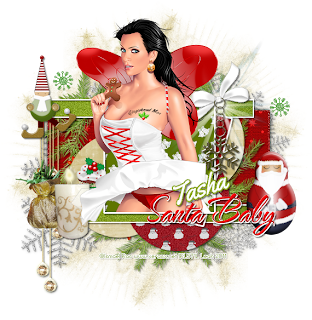 This tutorial is of my own creation and any resemblance to any other tuts is purely coincidental. This tutorial is for personal use only, using it for monetary gain is against our TOU's
Supplies:
Gimp
PTU kit from Tasha's Playground called Christmas Chaos HERE
Tube of choice. I am using Ismael Rac. You must have a license to use his tubes. Get them HERE
Template 4 from me HERE (scroll down to Leah)
Mask 336 from weescotslass HERE
Font-Yellowtail
Let's begin!
Open template. Image>Scale Image 500x500 px and change the x & y resolutions to 72. Image>Canvas Size 600x600 px and press center.
-Let's add papers to the template layers. Make the template layer active (see below). Right click template layer in layer box and choose alpha to selection. Open paper (see below). Right click paper layer in layer box and choose add alpha channel. Layer>Scale Layer by 60%.Select>Invert. Press delete on your keyboard. Select>None. Delete the original template layer.Here are the template layers and which papers I used:
s 1- paper 2
s 2- paper 4
bottom rect & top rect- paper 3
circle 1- paper 6 Filters>Light & Shadow>Drop Shadow 2, 2, 2, black, 50
circle 2- paper 12 Filters>Repeat drop shadow
circle 3- paper 11 repeat drop shadow
lrg rect- paper 5
-Repeat drop shadow on the following layers: f 1, f 2, bottom frame and top frame.
-Make the lrg rect back layer active. Filters>Noise>RGB Noise. Change all sliders, except alpha, to 0.50. Add drop shadow of 0, 0, 010, black, 100.
-Make the words layer active. Filters>Decor>Add Bevel. Uncheck work on copy. On the words back layer, add drop shadow of 2, 2, 2, black, 50.
-Open tube. Move below the word art layers. Sclae 70%. Place in the middle of tag. Layer>Duplicate Layer. Move duplicate tube above paper 2 layer. Make paper 2 active. Select your magic wand and click outside the paper. Make the duplicate tube active. Delete. Select none. Make the original tube active. Select your eraser tool and erase the bottom half of her so it looks like she is sticking out of the frame.
Elements:
Add drop shadow of 2, 2, 2, black, 50 to all element layers, unless otherwise stated ( it will say NDS for no drop shadow). See my tag for placement.
wreath
snowflake charm
bag NDS
santa NDS
candle
light NDS
decor
elf dude
cupcake NDS
snow swirl
snowflake 2 NDS
-Open paper 10 and make the bottom layer. Apply mask. Click HERE to learn how to use masks.
-Add your name and copyright.
You're finished!
Thursday, December 1, 2011

This tutorial is of my own creation and any resemblance to any other tuts is purely coincidental. This tutorial is for personal use only, using it for monetary gain is against our TOU's.
Supplies Needed:

~Gimp (any version will do).
~Tasha's Playground portion of the FTU Christmas Time O'Scrap blog train, which you can get HERE.
~Tube of choice. I used the artwork of Shawli, you must have a license to use this art. You can purchase this art from PTE HERE.
~Template of choice. I used Leah's template 118 which you can get on our blog HERE.
~Font of choice. I used Mural Script.
Let's get started!!!
1. Open a new layer ( I prefer a large canvas, so I make mine 1050x656). Make your canvas transparent (Layer > Transparency > Color to Alpha).
2. Open template in PSD format, remove and move layers of template around until they are the way you like them.
~Add paper from scrapkit to individual layers of the template (Right click on template layer in layer box > Alpha to Selection > CTRL I > Select paper layer in layer box > Delete).
These are the papers I used:
Paper 2
Paper 5
Paper 8
~I added noise to some of the template layers to make them look glittery (Filters > Noise > RGB Noise).
~I colorized some of the template layers to better match the scrapkit (Colors > Colorize > play with the setting until you get the desired color).
~Add drop shadow to template layers (Filters > Light & Shadow > Drop Shadow).
3. Open tubes, I used both a full body and a close up.
~Open full body tube, add drop shadow.
~I changed the mode on the close-up to Grain Merge (at the top of your Layer Box you will see where it says Mode, click the arrow and select Grain Merge from the drop down menu). This tube has been added to the template in the same way you add paper (Right click on template layer in layer box > Alpha to Selection > CTRL I > Select tube layer in layer box > Delete).
4. Open and place the following elements:
Stars
Ribbon
Button
Button 2
Stocking
Bow
Ornament
Branch 2
Flower
Gel flower
~Some of the elements may need to be sized down. Using your scale tool in your tool box adjust the pixel size until element is the correct size~
~Add drop shadow to all elements~
5. Merge Layers (Image > Merge Visible Layers).
6. Crop Image (Image > Autocrop Image).
7. Scale image to desired size (Image > Scale Image).
8. Add copyright info and name.
9. Save as .png
ALL DONE!!!!!!!!!!
We are so excited to announce that we have joined 2 new creative teams!!!!!!
We can't wait to get started working with the awesome kits from Jo @ A Taggers Scrap & all of the outstanding kit makers @ Lollipops N Gumdrops.
Click on the blinkies to check out what they have too offer and keep your eyes peeled for new tuts coming your way soon.


Subscribe to:
Posts
(Atom)
Snag Our Blinkies


Don't Be A Pirate!